Git and GitHub
 Edit on GitHub
What is Git?
Version Control Systems
Version control is a system that records changes to a file or a set of files over time, so that ou can recall specific versions later.
There are three main types of version control system:
- Local version control systems: maintain a local database, or even make copies of the files with timestamp to know which version is earlier or later.
- Centralized version control systems: a single, centralized version database that contain all versioned files. A number of clients check out files from that central place.
- Distributed version control systems: each client fully mirror the repository, including its full history. Thus, if any server dies, the systems that were collaborating can restore the content. Git is a type of distributed version control system.
History of Git
In 2002, the Linux kernel project began to use a proprietary DVCS called BitKeeper. However, the relationship between the community and the commercial company that developed BitKeeper broke down, and the tool's free-of-charge status was revoked. Thus, the Linux community developed their own tool based on some of the lessons learned while using BitKeeper.
Goals of Git:
- Speed
- Simple Design
- Strong support for non-linear development (thousands of parallel branches)
- Fully distributed
- Able to handle large projects like Linux kernel efficiently (speed and data size)
Core concepts of Git
Snapshots, not differences
Git thinks of its data as a series of snapshots of a miniature filesystem. Basically, every time we commit, Git takes a picture of what all the files look like at that moment and stores a reference to that snapshot.
Thus, the data of Git is like a stream of snapshots.
Nearly every operation is local
Most operations in Git need only local files and resources to operate. Because we have the entire history of the project on the local disk, most operations seem almost instantaneous.
Git has integrity
Everything in Git is checksummed before it is stored and then referred to by that checksum. That means it is impossible to change the contents of any file or directory without Git knowing about it.
The mechanism that Git uses for checksumming is called SHA-1, which is a 40-character string composed of hexadecimal characters.
Git generally only adds data
Most actions with Git tend to add data to the Git database. Thus, it is hard to get the system to do anything that is not undoable or to make it erase data in any way (but not impossible).
The Three States
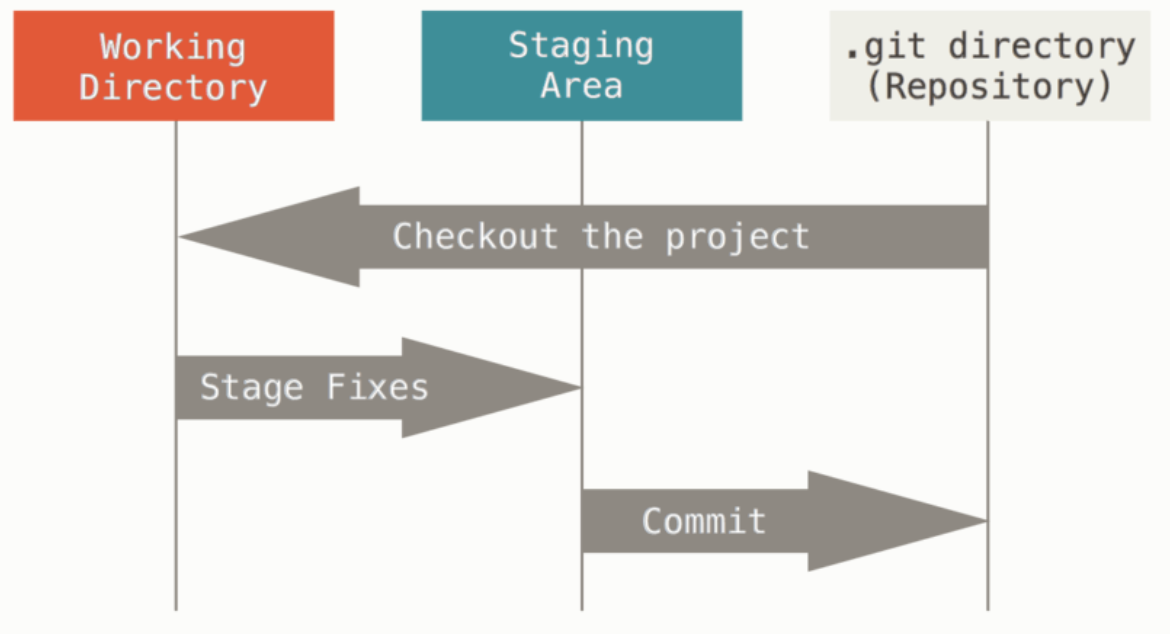
Files managed by Git can reside in three states:
- Modified: File has been changed, but not commited to the database
- Staged: Modified files have been marked in their current version to go into the next commit snapshot.
- Committed: Data is safely stored in the local database.
Basic Usage of Git
Configuring Git
Git comes with a tool called git config for getting and setting configuration variables that control all aspects of how Git looks and operates:
[path]/etc/gitconfigfile: contain values applied to every use on the system and all of their repositories. Accessed bygit config --system~/.gitconfigor~/.config/git/configfiles: contain values specific to the user and apply to all repositories of this user. Accessed bygit config --globalconfigfile in the Git repository of the current repository: specific to that single repository.
Setting identity
Setting identity is the first thing that we should do when installing Git. It is because every Git commit uses this information, and its immutably baked into the commits you create.
git config --global user.name "User Name"git config --global user.email user.name@example.com
Getting a Git Repository
Typically, there are two ways to obtain a Git repository:
- Take a local directory that is currently not under version control, and turn it into a Git repository
- Clone an existing Git repository from elsewhere.
Initializing a repository
cd <director>git init
This commands create a new subdirectory named .git that contains all necessary repository files.
Cloning an existing repository
git clone <url> <directory-name>
Git receives a full copy of nearly all data that the server has. Every version of every file for the history of the project is pulled down by default when running the command.
Recording changes to the repository
Lifecycle of the status of files in a repository
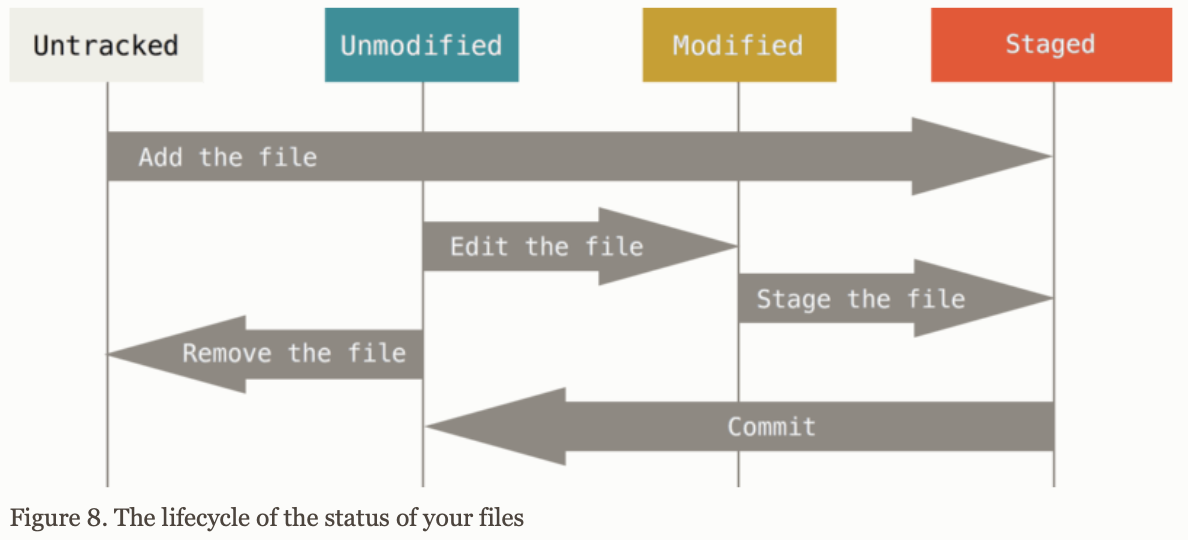
Tracked files are the ones that Git knows about, because they were in the last snapshot. They can be modified, unmodified, or staged.
Untracked files are anything else.
Checking status of the files
git status
Tracking new files
git add <file>
Staging Modified Files
The git add is also used to add modified files to the staging for the next commit.
Think of git add as adding a particular snapshot of a file to the commit history instead of adding a file.
Ignoring Files
Use the .gitignore file to store class of files that we don't want Git to automatically add or even show as being untracked.
Rules for the pattern of .gitignore:
- Blank lines of lines starting with # are ignored
- Standard glob pattern works, and will be applied recursively throughout the entire working tree
- You can start the patterns with a forward slash (/) to avoid recursivity
- You can end the patterns with a forward slash (/) to specify a directory
- You can negate a pattern by starting it with an exclamation point (!)
Viewing staged and unstaged changes
git diff # Show changes that have not been stagedgit diff --staged # Show changes between the staged and the previous head
Committing your changes
git commit -m "message"git commit -a -m "message" # Automatically add all tracked files and commit
Removing files
To remove a file from Git, you have to remove it from your tracked files and the commit.
git rm <file> # untrack and also removes the file from the working directory so that you don't see it as an untracked file the next time.
Viewing the commit history
Viewing the history
git log # Lists the commits made in that repository in reverse chronological ordergit log -p -2 # Show the difference introduced in each commit for the last two commitsgit log --stat # Show some abbreviated stats for each commit
Undoing things
When you mess up the last commit
For example, you commit too early and forget to add some files or mess up the commit message. Use git commit --amend for this purpose. In the end, there will be only one commit in the history.
git commit -m "initial commit"git add forgotten_filesgit commit --amend
Unstaging a staged file
git reset HEAD <file>
Unmodifying a modified file
Unmodifying a file means reverting it back to what it looked like in the last commit.
git checkout -- <file>
In general, git checkout completely replace the local file, and thus is a dangeous command. Try to use branches and stashes instead.
Working with Remotes
Remote repositories are versions of your projects that are hosted on the Internet of network somewhere. They can be read-only, or read/write for you.
Managing remote repositories includes knowing how to add remote repositories, remove remotes that are no longer valid, manage various remote branches, and define them as being tracked or not, and more.
Showing remotes
git remote # Show shortnames of each remote handle specified, such as origingit remote -v # Show URL that Git has stored for the shortname to be used when reading and writing t the remotegit remote show <remote> # Show details
Adding remote repositories
git remote add <shortname> <url>git remote rename <old> <new>git remote remove <shortname>
Fetching and Pulling from remotes
The fetch command pulls down all the data from the remote project that we don't have. After doing this, we will have references to all the branches from the remote. Noted that the git fetch command only downloads the data to local repository. It does not automatically merge with or modify any local work.
git fetch <remote> # Pull all data from the remote that we don't have yet.
The git pull command fetch a remote branch and then merge that remote branch into your current branch. By default, the git clone setup local master branch to track the remote master branch.
Pushing to remotes
git push <remote> <branch>
This command works only if you have write access and nobody has pushed in the meantime. If someone else pushed upstream, and then you push, your push will be rejected. You will have to fetch their work first, incorporate it into yours before you will be allowed to push.
Git Branching
Concepts of branching
Branching means you diverge from the main line of development and continue to do work without messing with that main line.
Because Git branches are incredibly lightweight, Git encourages workflows that branch and merge often, even multiple times in a day.
How Git branching works
Recall that Git stores data as a series of snapshots. Each snapshot has pointers to the commits that directly came before it:
- Zero parent for the initial commit
- One parent for usual commit
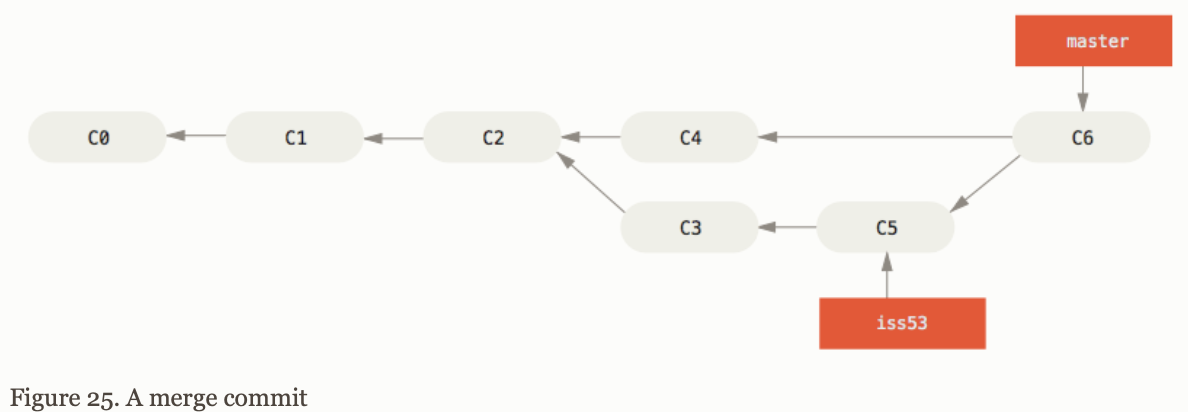
- Multiple parents for a commit that results from a merge of two or more branches.
A branch in Git is simply a lightweight moveable pointer to one of these commits.
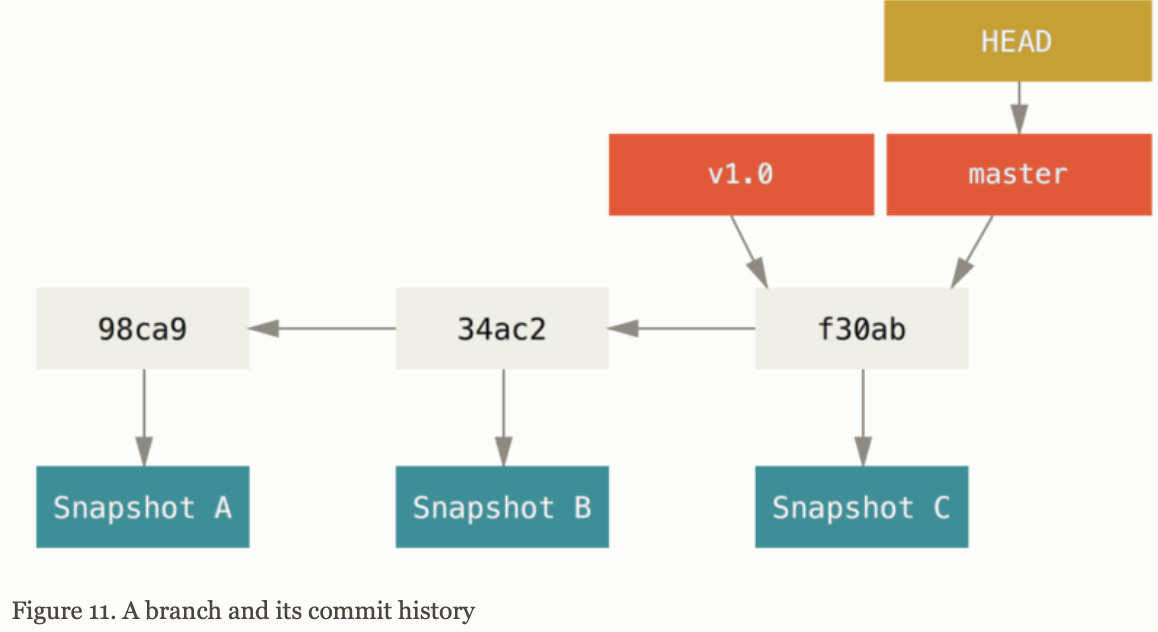
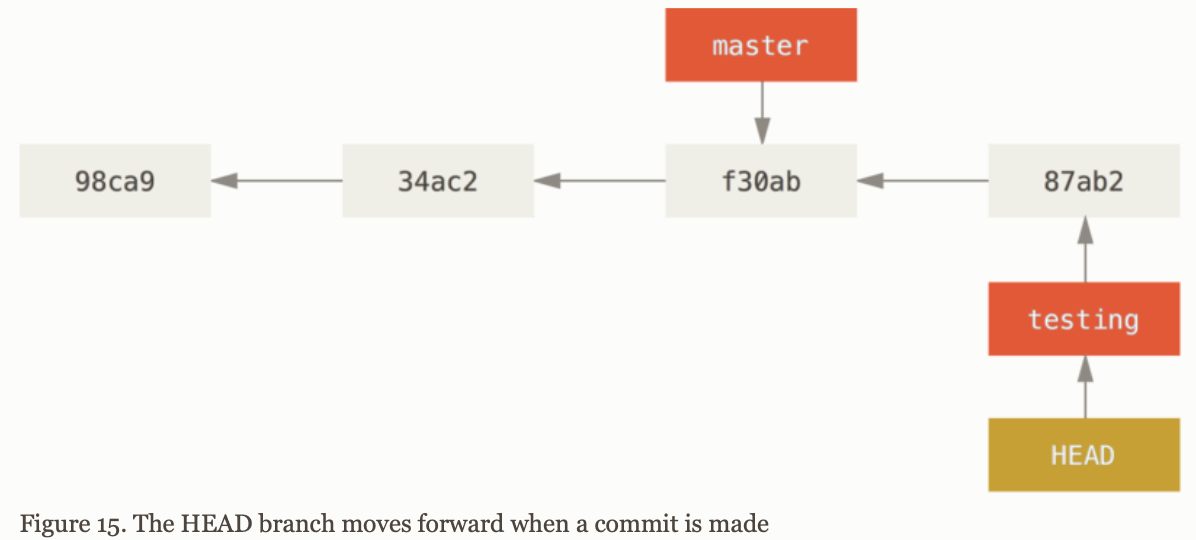
When you create a new branch, you create a new pointer that you can move around.
Git keeps a special pointer called HEAD, which points to the local branch that you are.
Using Git branching
Create and switch to new branch
git branch iss53 # Create branch iss53git checkout iss53 # Switch to the branch iss53# Short hand: git checkout -b iss53
Stashing and Switching to other branch
If you working directory or staging area has uncommited changes that conflict with the branch you are checking out, Git won't let you switch branches. While it is better to have a clean working state when you switch branches, an approach is relying on stashing and clearning
TBA
Merging
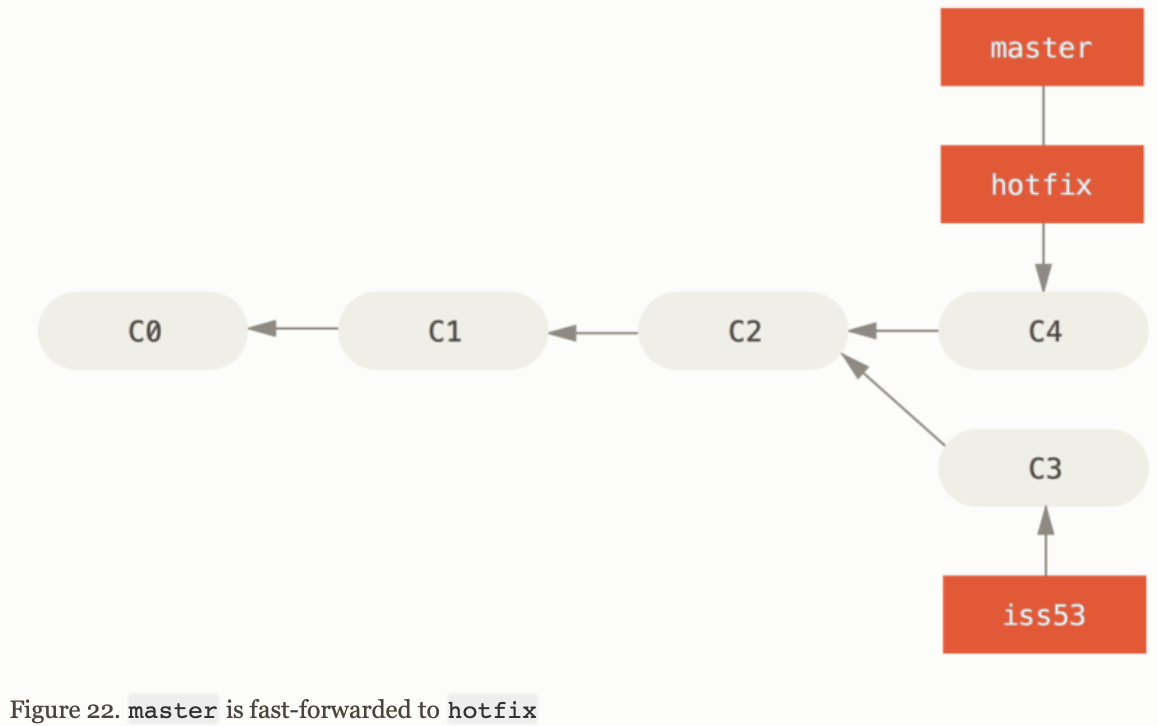
# Suppose that we want to merge hotfix back to mastergit checkout mastergit merge hotfix
Merge can be fast-forward when we try to merge one commit with a commit that can breached by following the first commit's history.
If the development history has diverged from some older point, Git does a simple three-way merge, using two snapshots pointed by to by the branch tips and the common ancestor of the two.
Dealing with remote branches
Remote references are pointers in your remote repositories, including branches, tags, and so on.
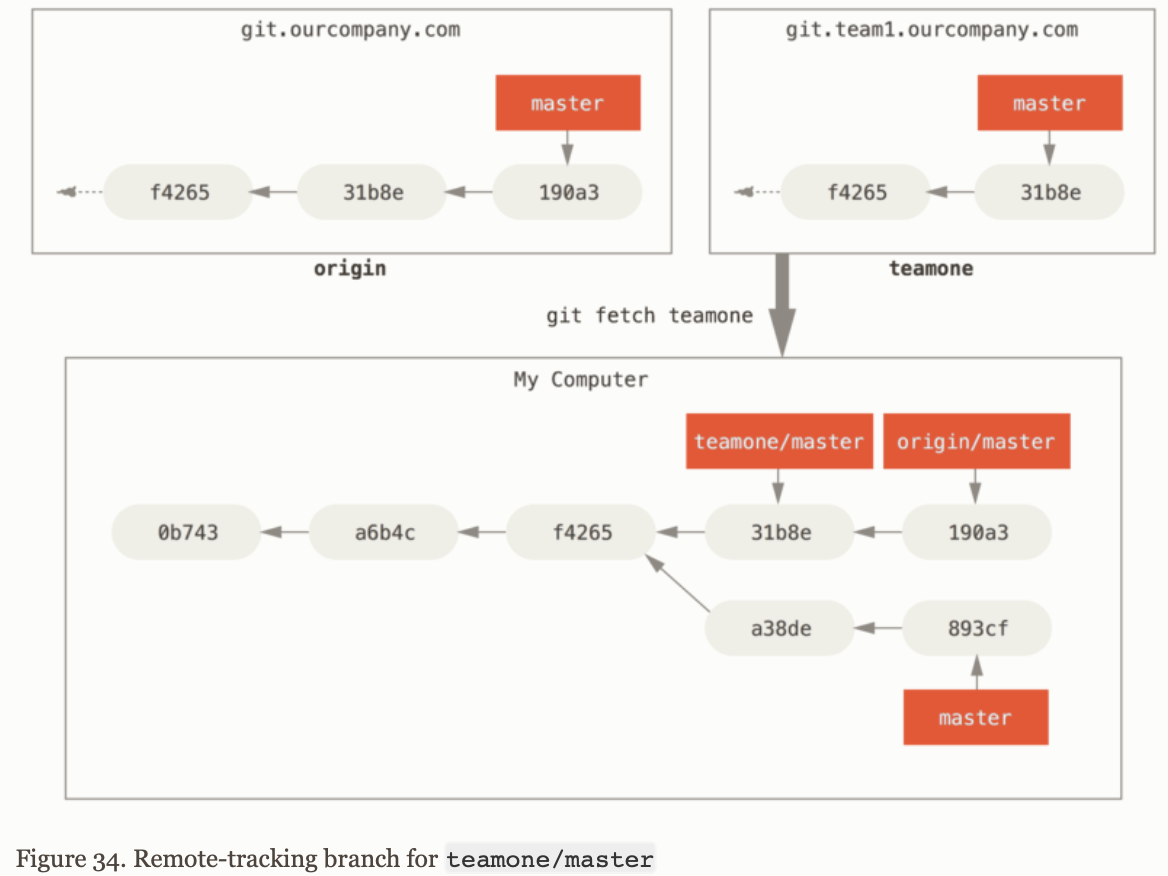
Remote tracking branches are references to the state of remote branches. They are local references that you can't move. Git moves them for you whenever you do any network communication to make sure they accurately represent the state of the remote repository.
Remote-tracking branch names take the form <remote>/<branch>. For instance, git checkout origin/master to see the master branch on the origin remote since the last time we communicate with it.
Rebasing
TBA