CSS
 Edit on GitHub
CSS is Cascading Style Sheets. It describes how HTML elements are displayed on a media. External stylesheets are stored in CSS files.
CSS Syntax
A CSS rule-set consists of a selector and a declaration block.
- Selector points to the HTML elements on which the style applies
- Declaration block contains one or more style declarations
- Each declaration include a CSS property name and a value.
Example:
p {color: red;text-align: center;}
CSS Selectors
In general, CSS selectors can be divided into five types:
- Simple: select elements based on name, id, class
- Combinator selectors: select elements based on their relationship
- Pseudo-class selector: select elements based on a certain state
- Pseudo-elements selector: select and style a part of an element
- Attribute selector: select elements based on an attribute or attribute value
Select by element name
Select all <p> elements and apply the style.
p {text-align: center;color: red;}
Select by id attribute of an HTML element
Select all HTML elements with id="para1"
#para1 {text-align: center;color: red;}
Select by class
Select all HTML elements with class="center":
.center {text-align: center;color: red;}
Select only <p> elements with class="center":
p.center {text-align: center;color: red;}
HTML elements can refer to more than one class:
<p class="center large">This paragraph refers to two classes.</p>
Select multiple HTML elements at once
Select <h1>, <h2>, <p> at once:
h1, h2, p {text-align: center;color: red;}
CSS Combinators
There are four CSS combinators:
- Descendant selector (space)
- Child selector (>)
- Adjacent sibling selector (+)
- General sibling selector (~)
/*Select all p element inside div*/div p {background-color: yellow;}
/*Select all p elements that are children of a div*/div > p {background-color: yellow;}
/*Select all p elements that are placed immediately after div elements*/div + p {background-color: yellow;}
/*Select all p elements that are siblings of div elements*/div ~ p {background-color: yellow;}
Pseudo-classes
A pseudo-class is used to define a special state of an element such as mouse over or get focus.
/* unvisited link */a:link {color: #FF0000;}/* visited link */a:visited {color: #00FF00;}/* mouse over link */a:hover {color: #FF00FF;}/* selected link */a:active {color: #0000FF;}/*Note: a:hover MUST come after a:link and a:visited in the CSS definition in order to be effective! a:active MUST come after a:hover in the CSS definition in order to be effective! Pseudo-class names are not case-sensitive.*/
List of pseudo-classes: https://www.w3schools.com/css/css_pseudo_classes.asp
Pseudo-elements
A CSS pseudo-element is used to style a specified part of an element, such as first letter or line of an element. It is also used to insert content before, or after the content of an element.
/*Insert smiley before and after h1*/h1::before {content: url(smiley.gif);}h1::after {content: url(smiley.gif);}/*Notice the use of two colons ::*/
List of pseudo-elements: https://www.w3schools.com/css/css_pseudo_elements.asp
CSS Box Model
The CSS box model is a box that wraps around every HTML element. It consists of:
- Margins
- Borders
- Padding
- Actual content
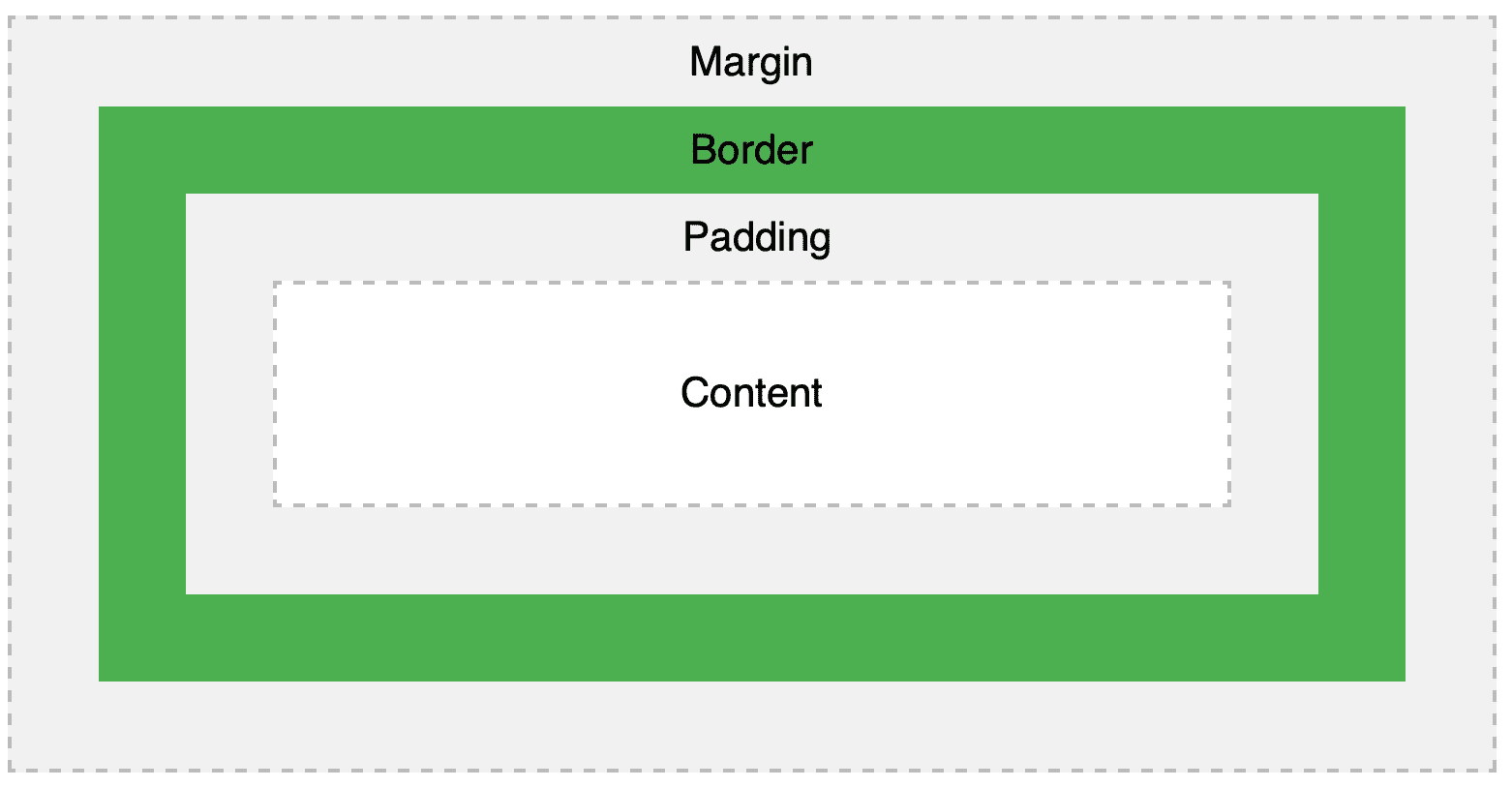
Knowing how the box model works is crucial for setting width and height of elements.
Setting Elements Height and Width
When we set width and height, we only set the size of the content. We need to account for padding, border, and margin when we calculate the size of elements.
Total element width = width + left padding + right padding + left border + right border + left margin + right margin
Total element height = height + top padding + bottom padding + top border + bottom border + top margin + bottom margin
Possible values of the height and width properties:
auto: browser calculates the height and widthlength: define the height and width in px, cm, etc.%: define the height/width in percentag of the containerinitial: set height/width to its default valueinherit: inherit height/width from its parent value
The property max-width allows setting the maximum width of an element. It allows the element to stretch to that size, however, the browser and shrink it should the viewport of the browse is smaller. If we use only width, the browser would not be able to shrink the element.
Setting Margins
Shorthand description of margin:
top, right, bottom, lefttop, left & right, bottomtop & bottom, left & right
Setting margin auto to horizontally center the element within its container. The element will take up the specified width, and split the remaining space equally between left and right margins.
CSS Layout
Display Property
The display property controls if/how an element is displayed. Every HTML element has a default display value.
Block-level Element
A block-level element always starts on a new line and takes up the full width avalable (i.e., stretching to the left and right as far as it can.)
Examples:
<div><h1>to<h6><p><form>
Inline element
An inline element does not start on a new line and only takes up as much width as necessary.
Examples:
<span><a><img>
/*This is a common trick, making inline li elements for horizontal menus*/li {display: inline;}
Inline-block
An inline-block element allows us to set width and height. Moreover, its top and bottom margins / paddings ar respected. However, no line-break is added after the element.
/*A common use of inline-block is to create horizontal navigation links*/.nav {background-color: yellow;list-style-type: none;text-align: center;padding: 0;margin: 0;}.nav li {display: inline-block;font-size: 20px;padding: 20px;}
Center elements horizontally
Use margin : auto and set its width to center align elements
.center {margin: auto;width: 50%;border: 3px solid green;padding: 10px;}
Use text-align : center to center align text within an element
.center {text-align: center;border: 3px solid green;}
Use display : block and margin : auto to center an image. The reason is that because imgs are inline elements and thus its layout cannot be controlled.
img {display: block;margin-left: auto;margin-right: auto;width: 40%;}
Left and Right Align elements
Using position : absolute to align elements:
.right {position: absolute;right: 0px;width: 300px;border: 3px solid #73AD21;padding: 10px;}
Using float:
.right {float: right;width: 300px;border: 3px solid #73AD21;padding: 10px;}
Center vertically
Use same top and bottom padding:
.center {padding: 70px 0;border: 3px solid green;text-align: center;}
Use absolute positioning and transform:
/*This is the container*/.center {height: 200px;position: relative;border: 3px solid green;}/*This p is inside the container*/.center p {margin: 0;position: absolute;top: 50%;left: 50%;transform: translate(-50%, -50%);}
The Position property
The position property specifies the type of positioning method to be used for an element:
- Static: Default mode. The element is positioned according to the normal flow of the page. Thus,
top, bottom, left, rightproperty has no effect. - Relative: The element is position relative to its normal position. The use of
top, bottom, left, rightwill move the position from its normal position. Other elements will not fill in the gap. - Fixed: The element is positioned relative to the viewport, meaning that it will always stay in the same place even if the page is scrolled. A fixed element does not leave a gap in the page where it would normally be.
- Absolute: The element is position relative to the nearest positioned ancestor. A positioned element is anything but static position.
- Sticky: The position is positioned based on the user's scroll position. Technically, it toggles between relative and fixed.
Example of absolute position:
div.relative {position: relative;width: 400px;height: 200px;border: 3px solid #73AD21;}div.absolute {position: absolute;top: 80px;right: 0;width: 200px;height: 100px;border: 3px solid #73AD21;}
Example of sticky position:
div.sticky {position: -webkit-sticky; /* Safari */position: sticky;top: 0;background-color: green;border: 2px solid #4CAF50;}